How to install FLASH PLAYER On ANDROID 4.2 & ANDROID 4.3


How to install FLASH PLAYER On ANDROID 4.2 & ANDROID 4.3..??

how to install and use Adobe Flash Player with a new version of Android, such as Android 4.2 or even the brand new Android 4.3. Getting Flash Player to work on Android devices is easy, and we'll show you how in just a few simple steps. Ready for Flash? Then let's get started.

Preparation

Before you can start, you must ensure that you have the installation of apps from unknown sources check box enabled in your Android settings. This is because you can't install Flash Player from the Google Play Store. Remember to un-check this box once you're done installing though.
  • Open the Android Settings and go to "Security".
  • Enable the check box "Unknown Sources" under Device Administrators.
  • Once this step is done, the actual installation can begin.
Before you can install Flash, you need to enable Unknown Sources in security settings.

Download Adobe Flash Player

Adobe removed the Flash Player from the Google Play Store a long time ago, but there are still archived versions on the Adobe homepage. Open the Archived Flash Player Versions on your PC (an easy way to avoid common problems when trying to install APKs directly from your handset) and scroll down to Flash Player for Android 4.0 archives. Download the latest version (the one at the very top of the list) and then copy the APK to your phone. Download Flash Player / FLV Player Here

Flash Player

Open a file explorer/file manager of your choice and navigate to the location of Flash Player and install it. That's it, simple huh! Don't forget to un-check ''Unknown Sources'' in your Security Settings once install is complete.
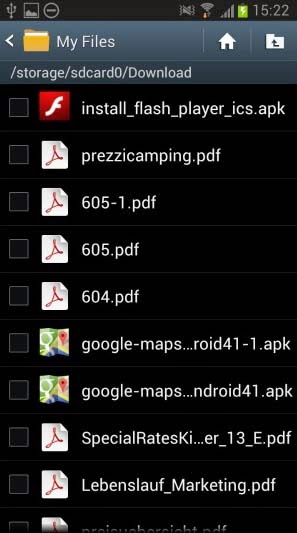
Once you've transferred the APK to your device, navigate to it and install.

Using Flash Player

In order to play Flash content on mobile websites, you still need a web browser that supports Flash. Google Chrome for Android does not support Flash, but browser alternatives like Mozilla Firefox or Dolphin Browser are compatible with Flash. To use the Flash Player with Firefox, no further interventions are needed – it will just work once installed. In Dolphin Browser the Flash plug-in must first be enabled in the settings.
This is found under Settings > Page content settings > Flash Player > Always on.

That's it, now you can use Flash Player content on your Android smartphone or tablet..!

Source : Adobe
Baca Selengkapnya →How to install FLASH PLAYER On ANDROID 4.2 & ANDROID 4.3

How to install ADOBE FLASH PLAYER on your Android / Tablet device

How to install ADOBE FLASH PLAYER on your Android / Tablet device

​New devices will soon be unable to get Adobe Flash from Google Play. Here's how to install it manually.

From today, for some new devices, Adobe Flash Player will no longer be available from Google Play, marking the end of Flash’s brief flirtation with Android. That means if you want to get hold of Flash on an Android device that doesn't ship with it, you’ll need to resort to a little bit of trickery. Fortunately, though, it’s pretty easy to get Flash up and running manually, assuming you understand the risks.

Join us after the break to find out how to manually install a legacy version of Adobe Flash Player on your Android phone or tablet.
Big scary warning

Before we begin, make sure you understand the risks associated with running the now-unsupported Adobe Flash on your device
  • There’s no official support for Flash on Android now. That means no more security or stability updates, no official support channels if something goes wrong. In particular, if you’re using this on an Android 4.1 (Jelly Bean) device, you can probably expect a few stability issues
  • The fact that security updates are no longer being developed for Flash for Android means that running this could potentially open you up to security risks and malicious Flash content. There’s no record of Flash exploits specifically targeting Android users, but that doesn’t mean it couldn’t happen.
  • You’re installing an app from a third-party source, so you’ll need to disable one of Android’s built-in security options. Remember to re-enable it afterwards for your device’s security.
  • On newer hardware, particularly devices running Android 4.1, you may experience stability issues with Flash content. That’s just the way Flash rolls on mobile devices.

Download Flash Player / FLV Player Here .

Prerequisites

You’ll need a phone or tablet running Android 2.2 (Froyo) to 4.1 (Jelly Bean). Check Settings > About phone / About tablet to see what you’re running. If you’re on Jelly Bean, check that you have a stock browser installed besides Google Chrome, as Chrome for Android doesn’t support Flash. Check your app drawer for “Browser” or “Internet.”

The method

Now, down to business. The process of getting Flash for Android on a device that doesn’t already have it is pretty simple.
  1. First, you’ll need to tell your device it’s OK to install apps from sources other than Google Play. You’ll need to check the box marked “Unknown sources.” On Android 2.2, 2.3 or 3.x, this is found under Settings > Applications. On Android 4.x, you’ll find it under Settings > Security.
  2. On your phone or tablet, download the Flash for Android application downloader. (It'll then download the file directly from Adobe.)
  3. Once that’s done, pull down the notification area and tap on the file to install it. Tap “Install” on the next screen to confirm.
  4. When Flash is installed, head into your phone’s stock browser (again, Google Chrome won’t support your newly-installed Flash apk).
  5. On Android 3.0 or later, go to Menu (three dots next to the address bar on some phones) > Settings > Advanced > Enable plug-ins. To enable Flash content all the time, select “Always on,” or to enable it selectively on each page, choose “On demand.” Or on Android 2.2 or 2.3, go to Menu > Settings (sometimes Menu > More > Settings), where you’ll find the “Enable plug-ins” option.
  6. You should now be ready to go. Check this link on your phone to confirm that Flash is up and running.
Finally, once it’s working, you may want to uncheck the “Unknown sources” option once again to keep your phone or tablet secure.

So there you have it -- Flash support on your Android device. Flash on mobile devices has never been perfect, but on the right hardware Flash 11.1 for Android will give you a decent experience. Remember, though, that Flash has been withdrawn from the Google Play Store for a reason -- it’s no longer officially supported, so bear that in mind as you’re browsing through Flash content on your phone.
Baca Selengkapnya →How to install ADOBE FLASH PLAYER on your Android / Tablet device
Copyright © 2014
Modif Template by Ghibratz | Hak Cipta | Didukung Oleh Blogger